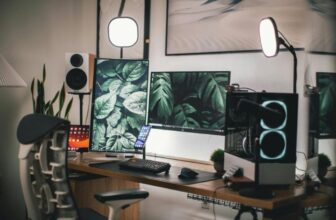
When setting up dual monitors on your gaming desk, the key lies not only in the hardware but also in the optimal configuration for an immersive gaming experience. Consider factors like screen size, placement, and display settings that can significantly impact your gameplay. By following the right steps and adjustments, you can elevate your gaming setup to a whole new level.
Gaming Desk Setup Requirements
To optimize your gaming experience, ensure that your gaming desk meets the specific setup requirements for accommodating dual monitors effectively. Firstly, your gaming desk should have ample space to comfortably fit two monitors without them feeling cramped. Make sure the desk is wide enough to provide ample separation between the screens for a seamless viewing experience. Additionally, consider the desk’s weight-bearing capacity to support the weight of two monitors securely.
Cable management is another crucial aspect to consider. Your gaming desk should have sufficient openings or clips to route and organize the cables neatly. This not only keeps your setup looking tidy but also prevents any accidental tugs or pulls on the cables when adjusting the monitors.
Furthermore, ensure that the desk’s height is adjustable or at an optimal level to prevent neck strain or discomfort during long gaming sessions. Having a desk that allows you to customize the height can significantly enhance your overall gaming experience by promoting better posture and reducing fatigue.
Choosing the Right Monitors
When selecting monitors for your dual setup, consider the display size, resolution, and refresh rate to enhance your gaming experience. Opt for larger screens, such as 24 to 27 inches, to immerse yourself in the game world. A higher resolution, like 1080p or 1440p, delivers crisp visuals and sharp details, making your games more visually appealing. Additionally, prioritize a high refresh rate of at least 144Hz for smoother gameplay with reduced motion blur.
For a seamless dual monitor setup, ensure both monitors have matching specifications to prevent any discrepancies in display quality. Look for monitors with slim bezels to minimize distractions and create a more cohesive viewing experience across both screens. Consider investing in monitors with adjustable stands or VESA mount compatibility for flexible positioning on your gaming desk. Lastly, choose monitors with features like AMD FreeSync or NVIDIA G-Sync for smoother graphics and reduced screen tearing during gameplay. By selecting the right monitors for your dual setup, you can elevate your gaming experience to new heights.
Connecting Your Monitors
Consider ensuring both monitors are equipped with the necessary ports to facilitate a seamless connection for your dual monitor setup. Most modern monitors come with standard ports like HDMI, DisplayPort, DVI, or VGA. To connect your monitors, you’ll need to check the available ports on both your graphics card and monitors.
Start by identifying the ports on your graphics card. Match these ports with the available ports on your monitors. If your monitors and graphics card have different ports, you may need to use adapters or converters to make the connection.
Next, power off your computer and monitors before making any connections. Use the appropriate cables to connect each monitor to the graphics card. Once connected, power on your monitors and computer.
Check if both monitors are detected by your system. You may need to adjust the display settings in your operating system to extend or duplicate the display across both monitors. If everything is set up correctly, you should now have a functional dual monitor setup ready for gaming or work.
Optimizing Display Settings
Adjust display settings for optimal performance and visual clarity on your dual monitor setup.
Start by adjusting the resolution of each monitor to match your preferences. Higher resolutions offer sharper images but may impact performance, so find a balance that works for you. Ensure both monitors are set to the same resolution for a seamless viewing experience across screens.
Next, fine-tune the refresh rate to reduce motion blur and screen tearing while gaming. A higher refresh rate, such as 144Hz or 240Hz, can provide smoother gameplay. Additionally, enable features like G-Sync or FreeSync to synchronize the refresh rate between your monitors and graphics card for a tear-free gaming experience.
Calibrate the color settings on each monitor to achieve accurate and vibrant visuals. Adjust the brightness, contrast, and color temperature to suit your preferences and ensure consistent colors across both screens. Consider using a color calibration tool for precise color accuracy.
Trending Products